Make a film with a previs
Lock the camera moves and cuts before you render, using a simple 3D blockout and a reference sheet.
Starting from a script lets the studio pick each shot’s camera and cut timing for you. This page covers the more deliberate path: you (or an AI agent) block out the scene first, so the camera moves and cuts are exactly what you want before anything is rendered. It’s also the way to get the same edit in more than one visual style, since the blockout stays the same while the style changes.
A few terms this page uses:
- Previs: short for “previsualization” — a plain, grey 3D blockout of a scene, with simple shapes standing in for characters and props. It sets the camera positions, cuts and timing, without any of the finished look.
- Reference sheet: one image with every character, prop and location for a scene laid out side by side. It’s what keeps faces, clothes and objects looking the same from shot to shot.
- Depth video: a plain video where brightness shows distance from the camera (near is bright, far is dark) instead of color. It’s rendered from the previs and describes the camera’s moves and cuts without describing any style.
Who this is for
Use this path when:
- A chase, a fight, or any scene needs its timing and cuts to be exact.
- You want to render the same scene in more than one look — a blockout is style-neutral, so you can restyle it repeatedly.
For most other films, starting from a script (see Make a film) is simpler and works well.
Before you start, check What you need: Blender if you build the previs yourself, or an AI agent with Blender on its computer.
Start a previs film
Click New film and choose I have a previs. The film starts with a scene named “Scene 1” and opens on the Storyboard tab — there’s no Script tab, since the previs sets the shots instead of a script.
Each scene is a 4-step card: 1 Previs, 2 Cast & location, 3 Reference sheet, 4 Render. Steps unlock in order, but you can open a later one to look ahead.
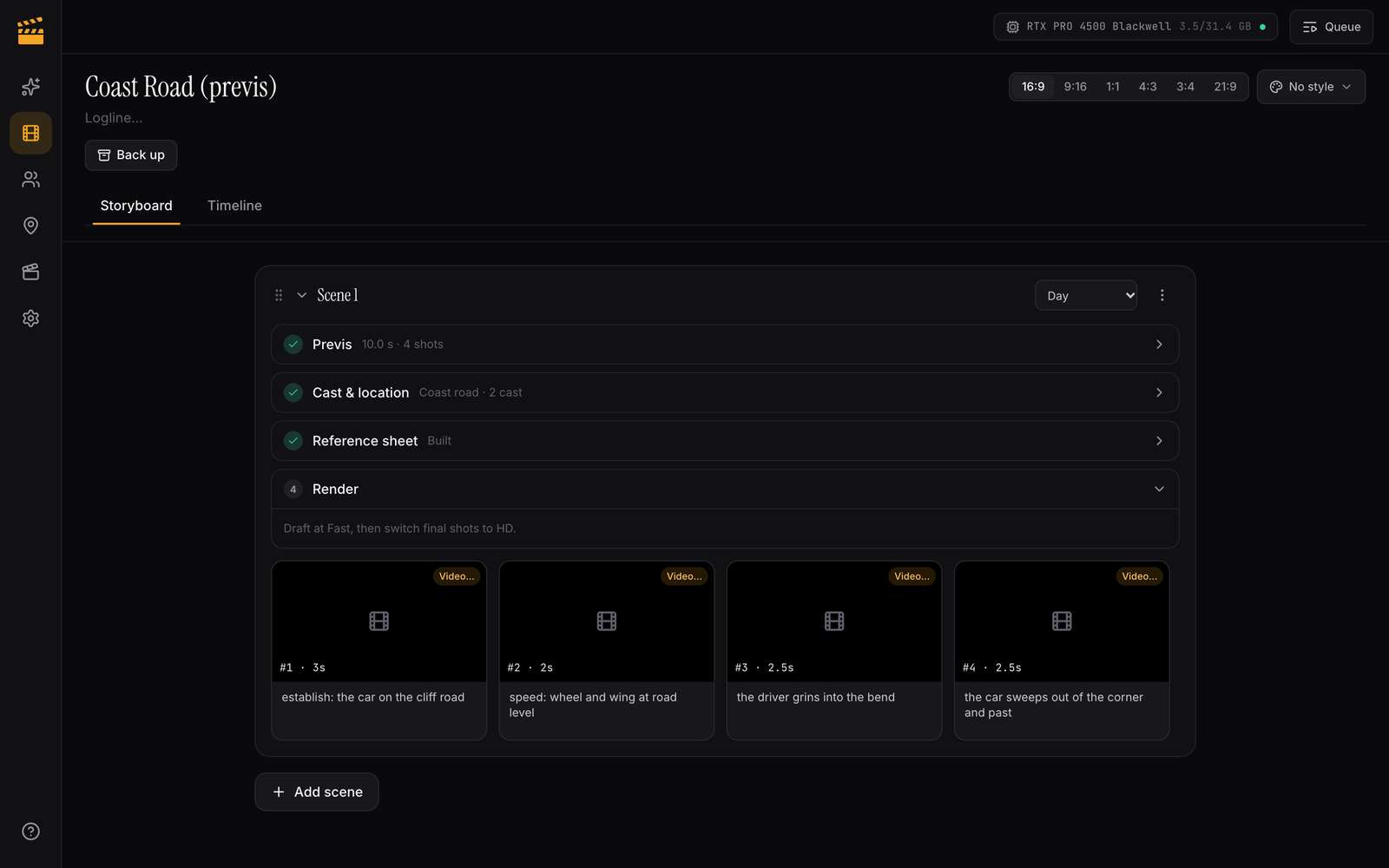
Build the previs
Block out the scene’s camera moves, cuts and timing as a simple grey 3D scene. This produces a playblast (a plain preview video of the blockout), its depth video, and usually a sequences.json with the cut points.
You can do this two ways:
- With an AI agent. Connect an agent with the previs skill and ask it to previs the scene. It builds the blockout in Blender, renders the playblast and depth video, writes
sequences.json, and hands them to the studio. - By hand, in Blender. A previs by hand lists what to export and the
sequences.jsonformat.
1 Previs
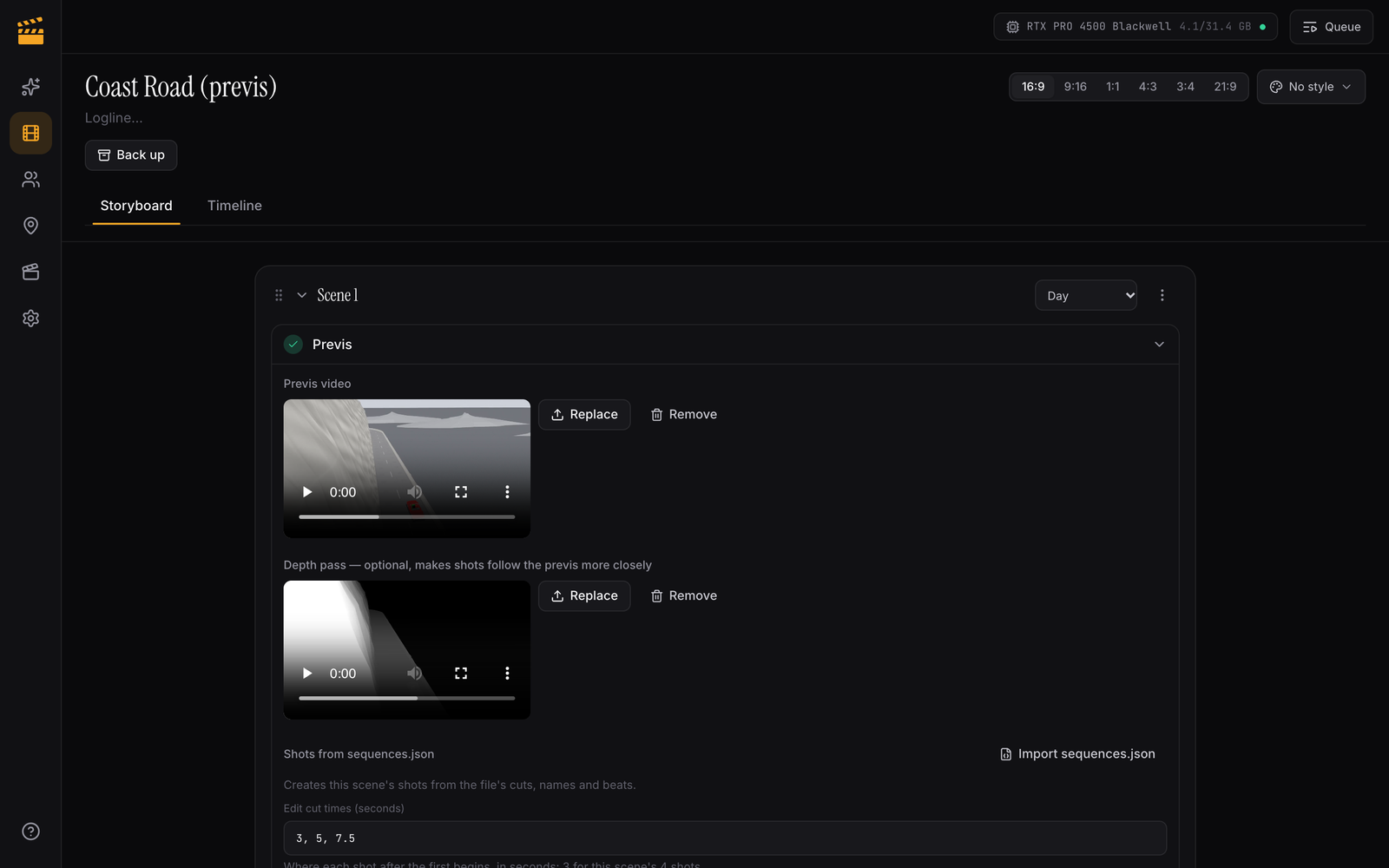
Upload the playblast under Upload previs video and, if you have it, the depth video under Upload depth pass. Click Import sequences.json to create the scene’s shots straight from the file — it names them from the file’s beats and sets their lengths. (If the file has more than one sequence, you’ll be asked which one is this scene.)
You can also fill in Edit cut times (seconds) yourself, without a sequences.json. The step warns you if the shots run past the end of the previs video.
2 Cast & location
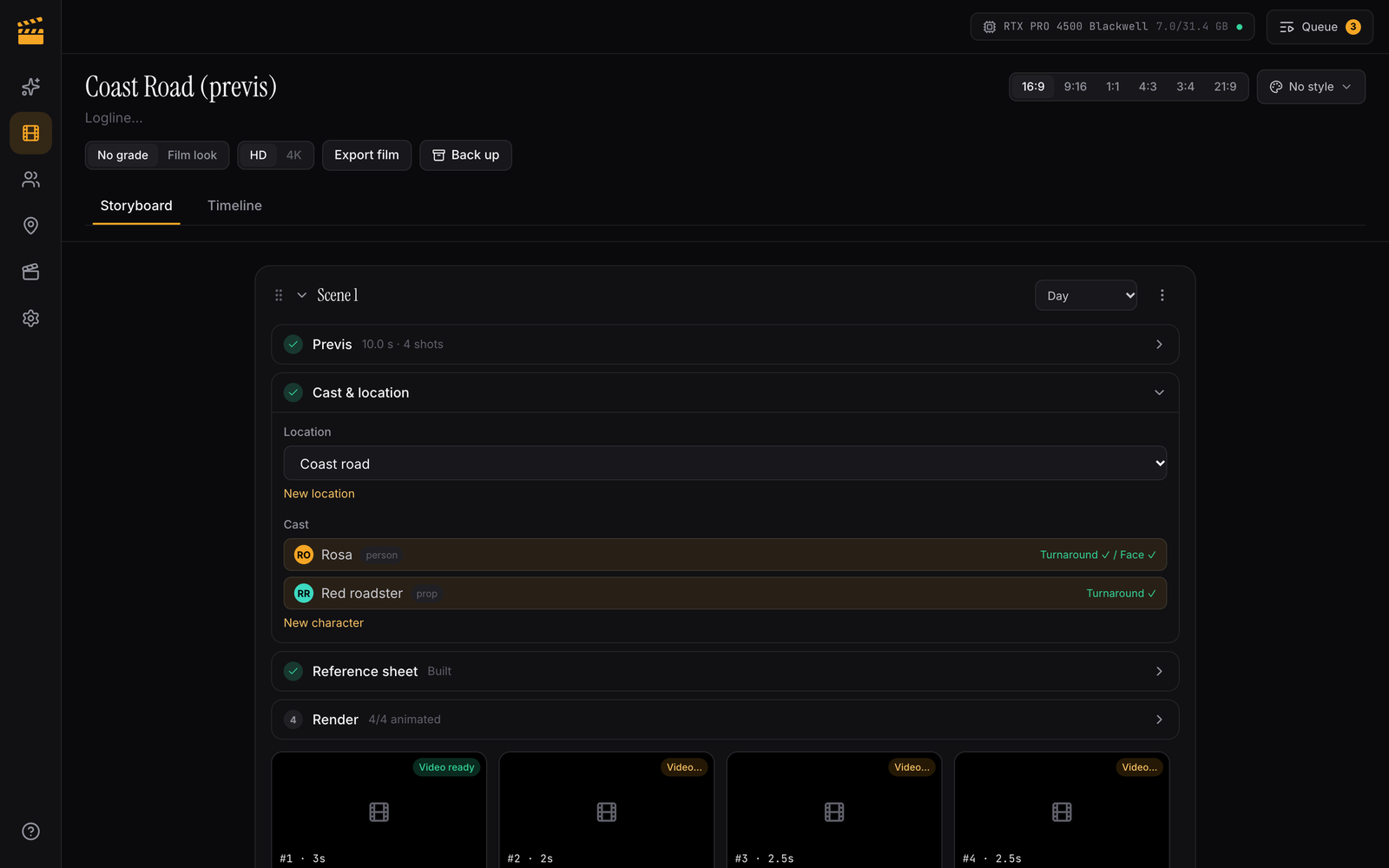
Pick the scene’s Location, and pick its Cast — the people and props from Cast & props that appear in this scene. Each one you pick shows its sheet status: Turnaround ✓ / Face ✓, or a Generate missing sheets button if it’s not ready yet. The scene’s cast is picked once here, not per shot. If the location has no establishing image yet, the step tells you and links to it.
3 Reference sheet
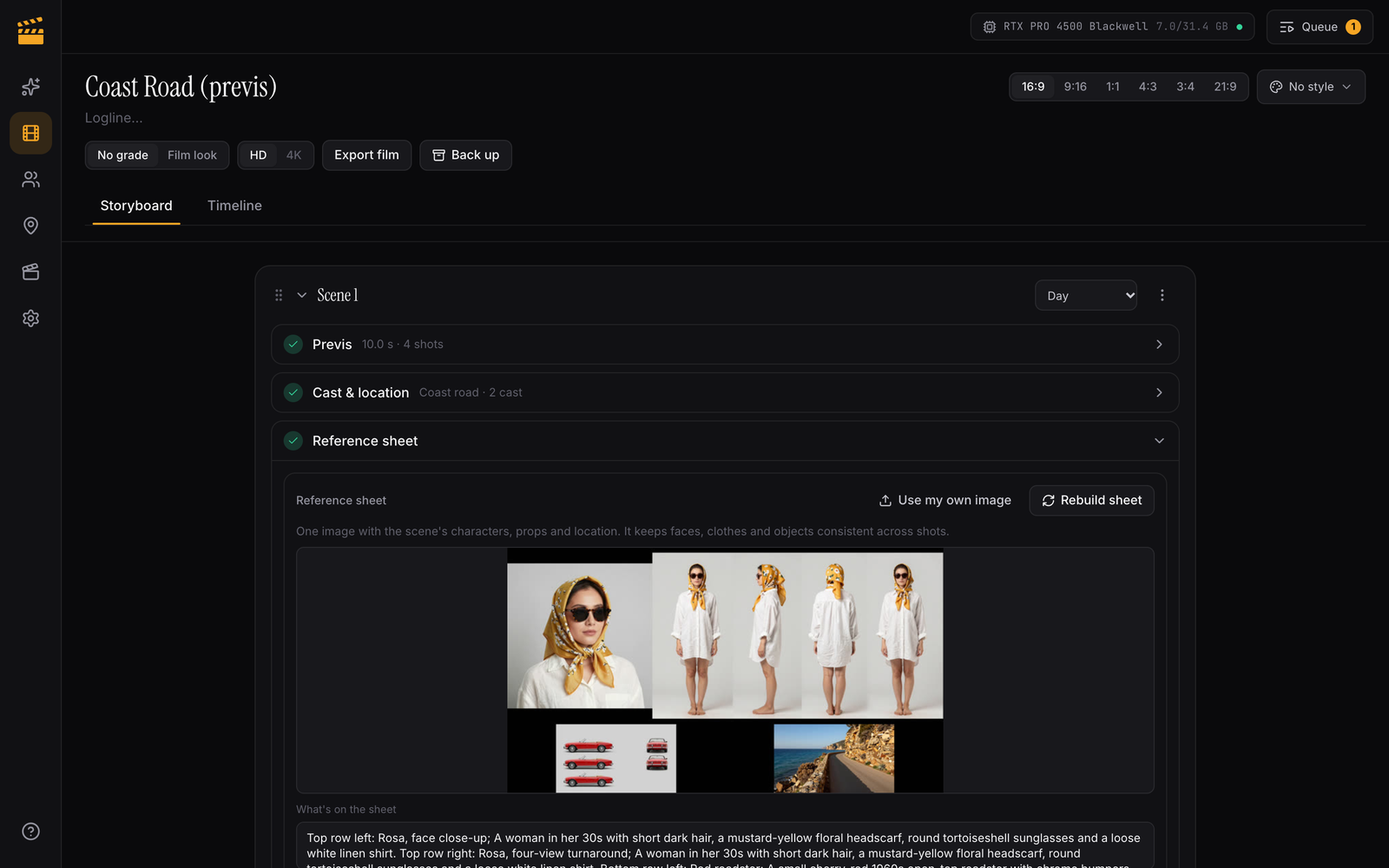
Click Build sheet. The studio combines the scene’s cast, props and location into one image, one panel per element, with the most important ones biggest. Only what’s on the sheet shows up in the render, so add anything that needs to appear first. What’s on the sheet describes each panel; you can edit it. Use my own image swaps in a sheet you made yourself.
If you haven’t added any cast yet, this step asks you to add them in step 2 first — you can still build a location-only sheet from the link it offers.
4 Render
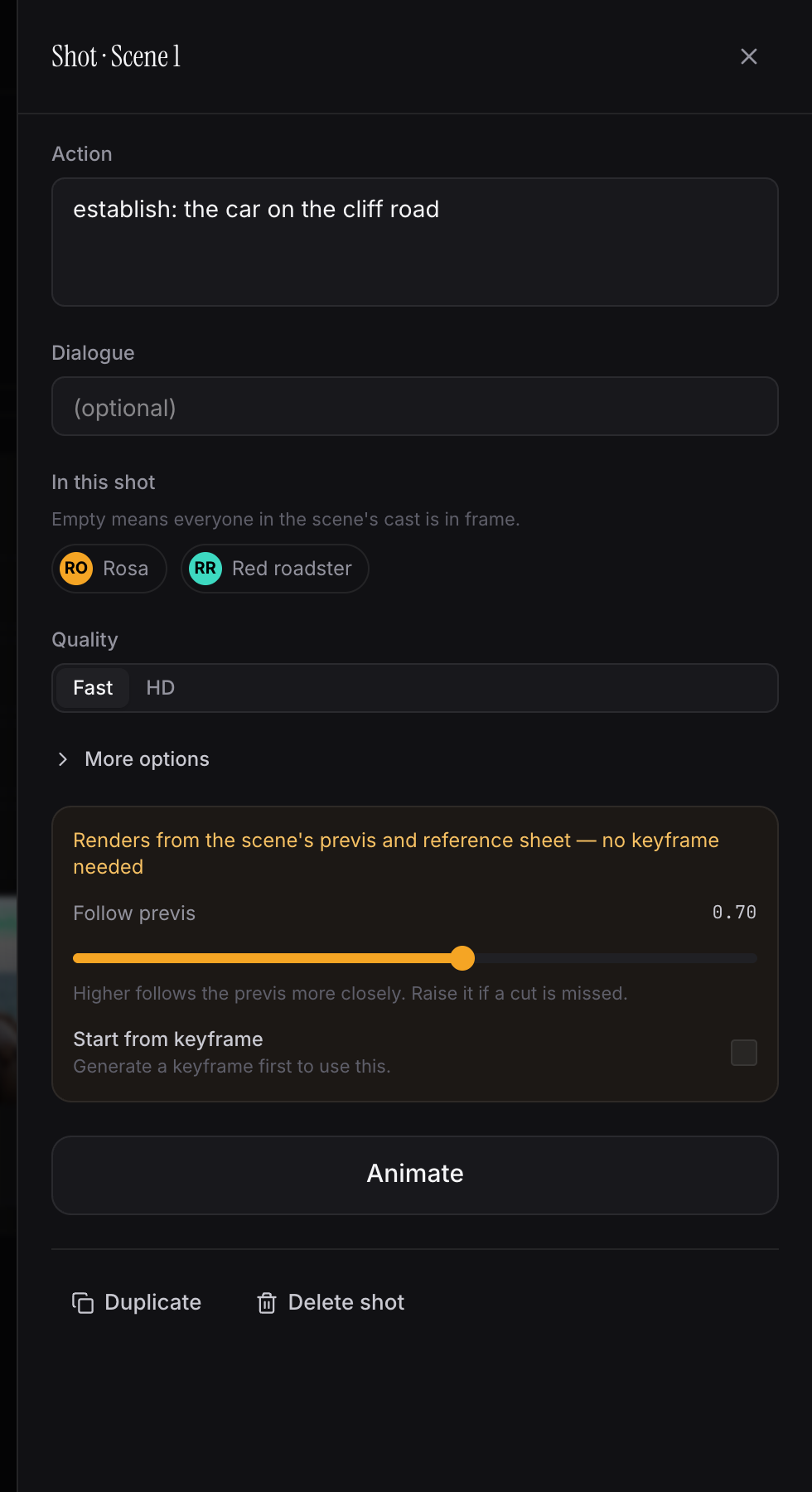
Click Animate N shots to render every shot in the scene from its reference sheet plus that shot’s slice of the previs. A tip reminds you: draft at Fast, then switch final shots to HD.
In a shot’s panel, Follow previs (default 0.7) decides how closely the render follows the previs — raise it if the model skips a cut in the previs, lower it if the render fights the reference sheet’s look (for example, losing a piece of clothing). Start from keyframe makes the clip open on the shot’s keyframe, if you made one.
Finish the film
Continue as in Make a film: review the shots, arrange scenes, apply a style or the film color grade, and export.
Doing the whole thing with an AI agent
Because every step above has an API and MCP tool behind it, a connected AI agent can run this entire flow on its own: cast the scene, previs it, build the reference sheet, render every shot, and export the film. See Use an AI agent to connect one.
The default engine, and the alternative
Shots built this way render with LTX-2.5, the studio’s default video engine, from the reference sheet and the previs’s depth video.
MiniMax H3 is available as an alternative for this same flow, and currently holds up better on big facial expressions. Its community license excludes the US, EU, UK and South Korea unless you get a license from MiniMax, so check whether it applies to you before turning it on.